OVERVIEW OF PROCESS:
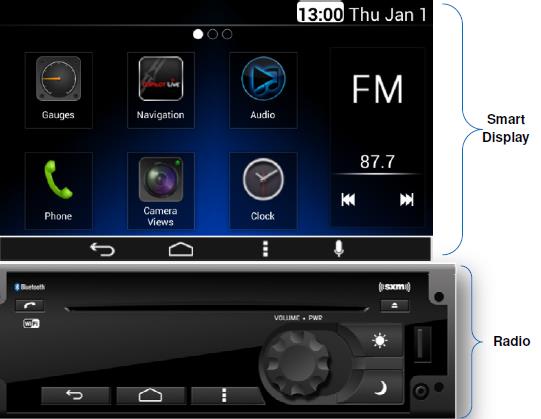
• STEP 1: Find your SmartNav display model number
• STEP 2: Download the software update file
• STEP 3: Select and download the correct file to a USB Key
• STEP 4: Insert the USB Key into the front port of the radio and wait up to seven minutes for the update to start
• STEP 5: Wait a few minutes for the update to install
• STEP 6: Once complete the Radio software will be updated
• STEP 7: Verify the update was successful
STEP 1: Find your display model number
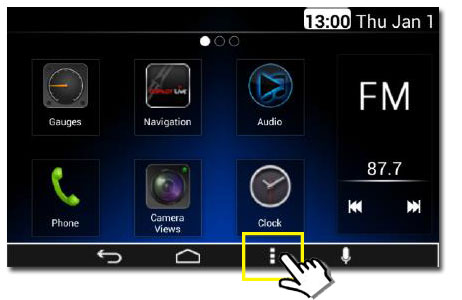
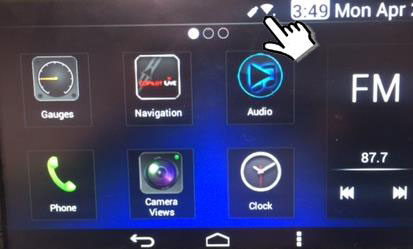
• Select the three vertical dots
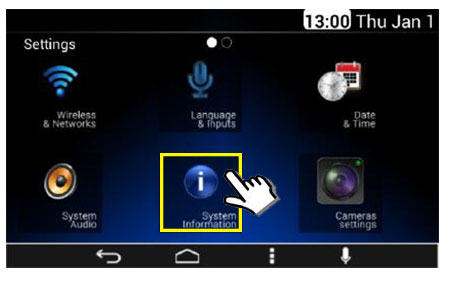
• Select the System Information icon
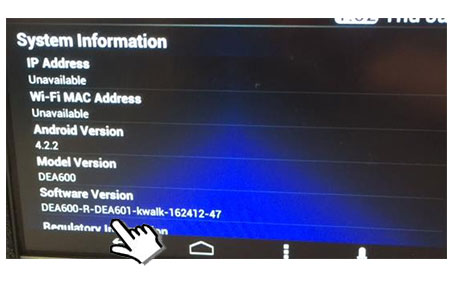
• If DEA601 is listed anywhere under Software Version, then the unit is a DEA601, otherwise it is a DEA600, regardless of the Model Version number. It is VERY IMPORTANT that you use the correct download for these systems.
STEP 2: Download the software update file
- DEA601 | Model Year 2021 or newer (New Graphic, will lose DPF & Fuel Economy Gauges) | With ALK Navigation
- DEA601 | Before Model Year 2021 | With ALK Navigation
- DEA600 | Model Year 2021 or newer (New Graphic, will lose DPF & Fuel Economy Gauges) | With ALK Navigation
- DEA600 | Before Model Year 2021 | With ALK Navigation
- For models without ALK navigation, please contact Pana Pacific Customer Support at (800) 726-2636 or cs@panapacific.com to receive instructions on updates to this software version.
STEP 3: Save the image file to a USB key
• Please note that the USB key size must be at least 1GB or bigger
• The USB key must be formatted to FAT32
• Download time will vary based on your network speed.
STEP 4: Insert the USB key to the radio front USB port
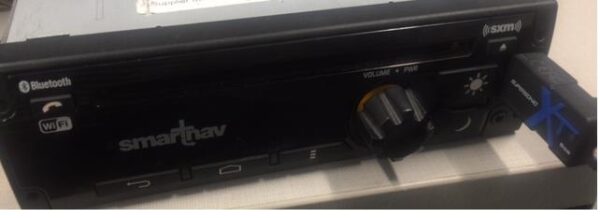
• Turn the ignition and radio on and wait up to seven minutes for the update to start. The update process will only take a few minutes after it starts.
• As soon as you see the “Installing system update…” message, wait 5 seconds and then remove the USB thumb drive. If you do not remove the thumb drive, the display will get into a loop where it continuously installs the update.
STEP 5: Update process should take a few minutes; once complete the display unit will reboot
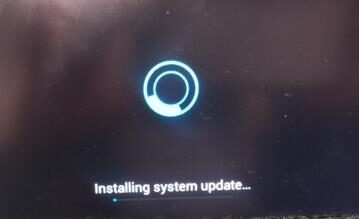
• Turn the ignition and radio on and wait up to seven minutes for the update to start. The update process will only take a few minutes after it starts.
• As soon as you see the “Installing system update…” message, wait 5 seconds and then remove the USB thumb drive. If you do not remove the thumb drive, the display will get into a loop where it continuously installs the update.
STEP 6: Once the display unit is updated it will automatically update the radio unit software
STEP 7: To verify the update was successful, check the version number under Software Version
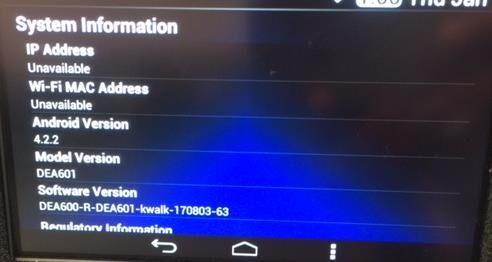
• 211200-81 for model year 2021 or newer
• 195000 for model year older than 2021